Kernel Compile
This tutorial is based on a Raspberry Pi Official Document titled as Kernel Building. Main purpose of this tutorial is to confirm that the procedure on the official document works for the Raspberry Pi that I have and to show some more details (like the screen capture for the result of each step).
Hardware / Software Enviroment
The Hardware/Software(OS) configuration that I used for this tutorial is as follows :
- Hardware : Raspberry Pi 3B+
- Operating System :
- OS Kernel


Local Builidng : Compling on Raspberry Pi
Step 0 : Basic Prep
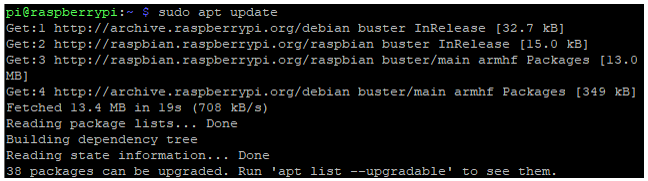
I updated apt to the latest version as shown below.
I am going to download the source code in the following directory.

Step 1 : Install Git and Build Dependencies
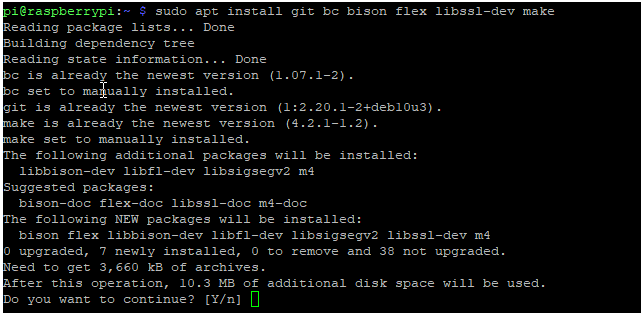
The command for this installation is as follows :
$ sudo apt install git bc bison flex libssl-dev make
Following is the result of installation. Hit 'Y' (yes) if it ask any question
Step 2 : Download the source code
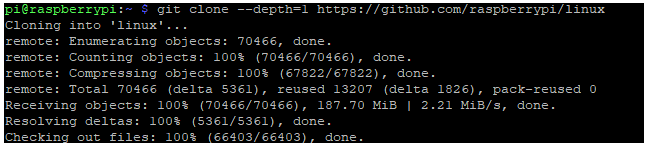
The command for downloading the source code is as follows.
$ git clone --depth=1 https://github.com/raspberrypi/linux
Following is the result of the download
you would see a new directory 'linux' is created as the result of the download.
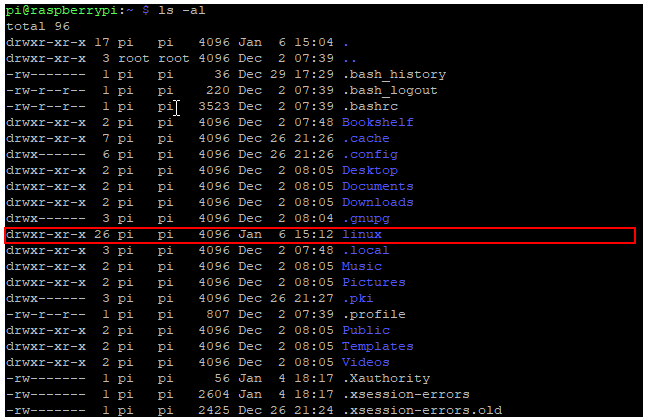
Just for checking, go to the 'linux' directory and see what kind of contents are there.
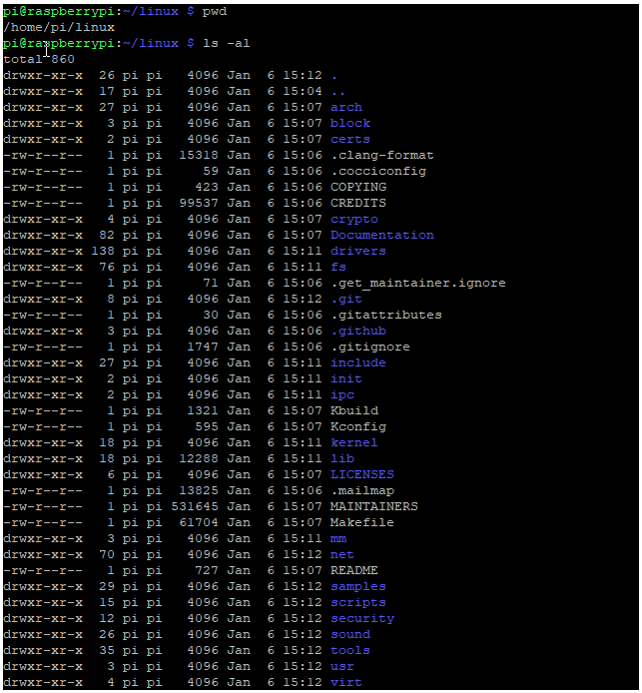
NOTE : From this point on, all the procedure is done in the directory /home/pi/linux
Step 3 : Define a variable KERNEL
In case of Raspberry Pi 3+ that I am using, you need to do define the variable KERNEL as follows.
$ KERNEL=kernel7

Step 4 : Apply the default Build Configuration
Command for this step is as follows :
$ make bcm2708_defconfig
The result of this step would be as follows (NOTE : this is only the initial part of the result.. you would see much longer result than this)
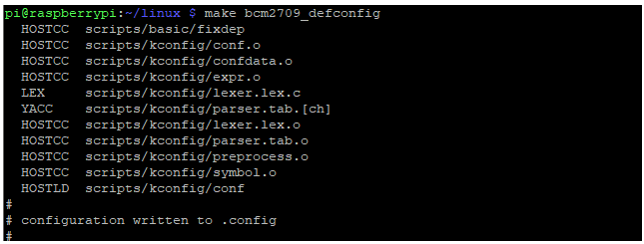
Step 5 : Compile the code
Start compile with the following command (NOTE : This step takes the longest time in the whole process. In my case, it took around 2 hours).
$ make -j4 zImage modules dtbs

Step 6 : Install Module
Install the module with the following command
$ sudo make modules_install

Step 7 : Copy the device trees
Do 3 copy operations to copy all the device tree related files (For the details of Raspberry Pi device tree, refer to this official document).
$ sudo cp arch/arm/boot/dts/*.dtb /boot/
$ sudo cp arch/arm/boot/dts/overlays/*.dtb* /boot/overlays/
$ sudo cp arch/arm/boot/dts/overlays/README /boot/overlays/

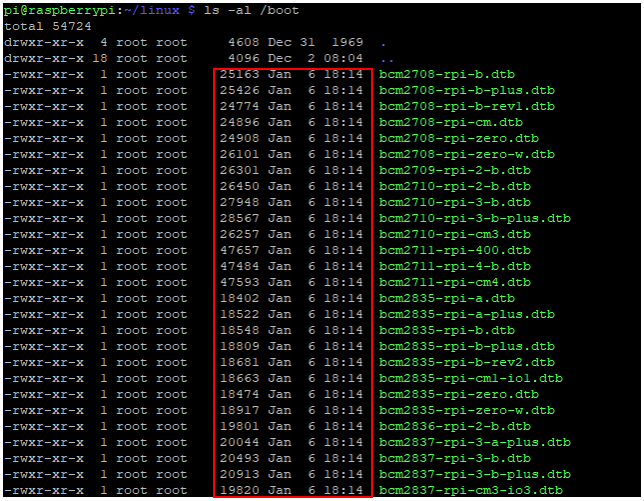

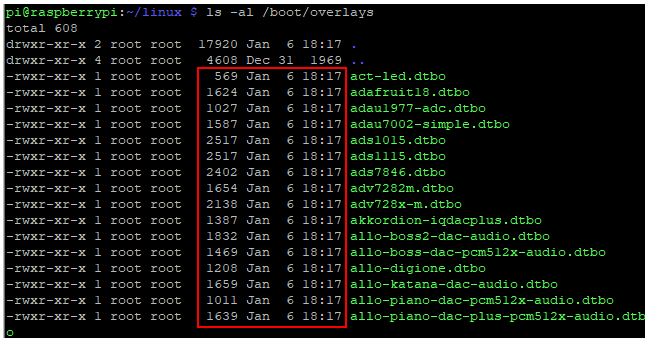

Step 8 : Copy the kernel image file

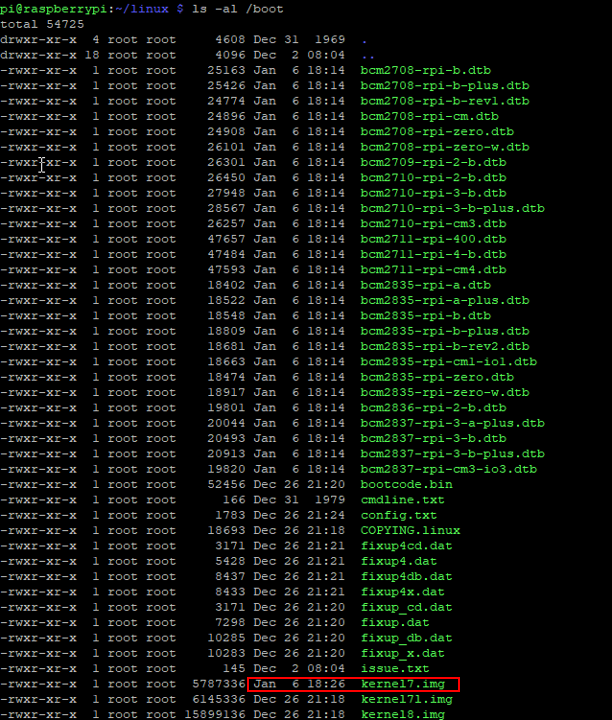
Step 9 : Reboot and Check

Reference :
[1]